
Cinema HD on Chromecast with Google TV 4K | Install Cinema HD App on Google TV 4K: Cinema HD is a well-known name in the world of third-party streaming apps. With its vast collection of movies and TV shows along with a host of handy features, it stands out as one of the most popular choices for free on-demand entertainment.

In this post, we’ll guide you through the steps to install Cinema HD APK on Chromecast with Google TV. The latest version of Chromecast with Google TV supports 4K streaming and also allows you to sideload Android apps and games, making it an ideal platform for running Cinema HD.
Install Cinema HD APK on Chromecast Google TV
Here are the steps you need to follow to install Cinema HD on Google TV 4K, which is widely regarded as an upgraded version of both Chromecast and Android TV.
To make the process straightforward, we’ve divided the installation into clear, easy-to-follow sections.
| App Name | Cinema HD APK |
| Current Version | V2 |
| Child Version | v2.5.0 & v2.4.0 |
| File Size | 30.05MB |
| Category | Entertainment |
| License | Freeware |
Enable Developer Options
After connecting your Google TV 4K device to your Smart TV, follow these steps to enable Developer Options:
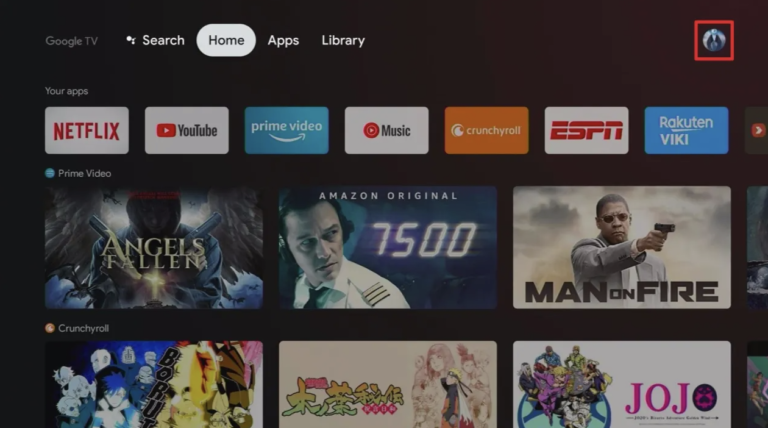
- Tap on the Profile menu located in the top-right corner of your Google TV home screen.
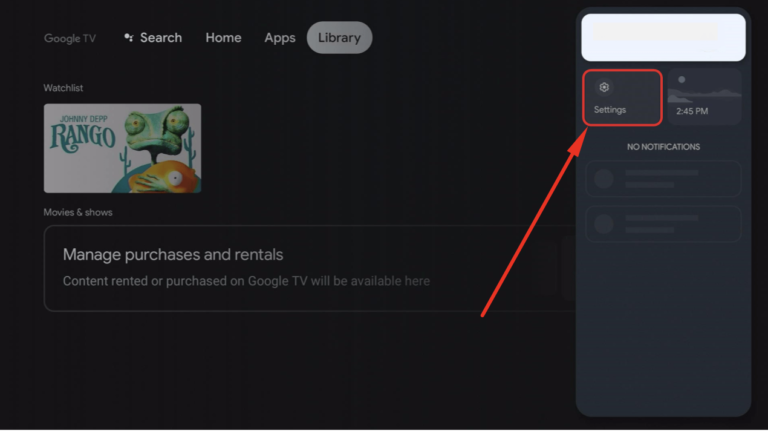
- From the menu, tap on Settings.
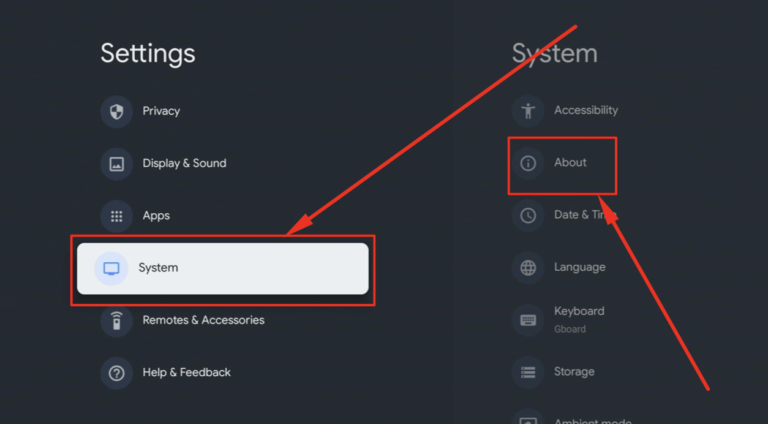
- In the Settings menu, scroll down and navigate to System > About.
- In the About section, locate the option labeled Android TV OS Build.
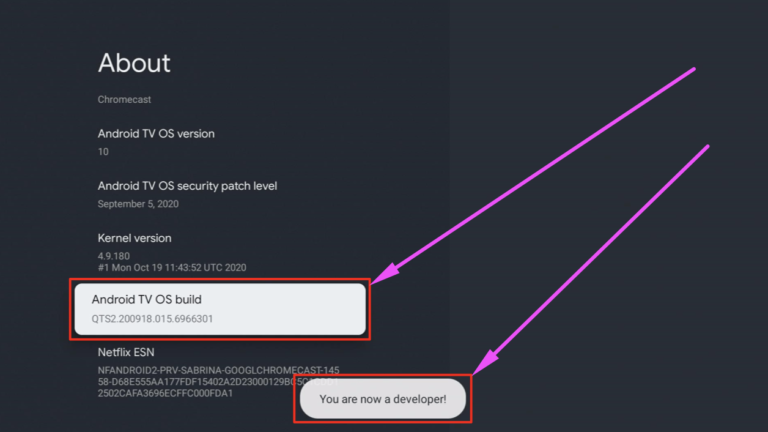
- Click on it 7 times.
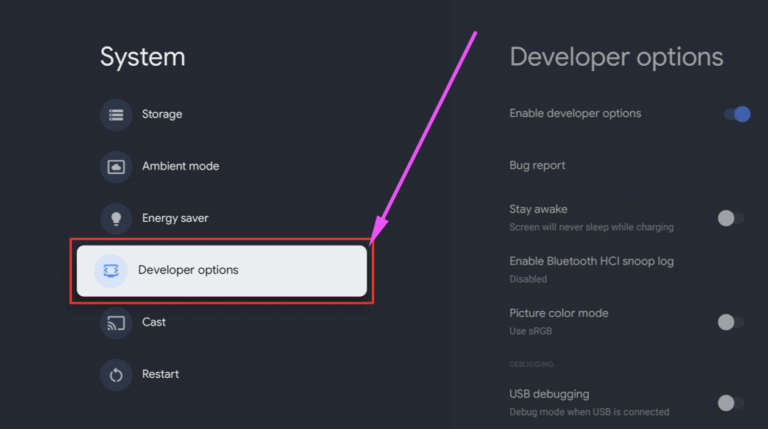
- You see the message: “You are now a developer.
- Now, if you go back, you will see Developer Options under System.
- This will enable you to download third-party Android apps on your Chromecast with Google TV.
Install Downloader App on Google TV 4K
- Go to the Home Screen of your Google TV 4K device.
- From the horizontal list on the Home Screen, please tap on Apps.
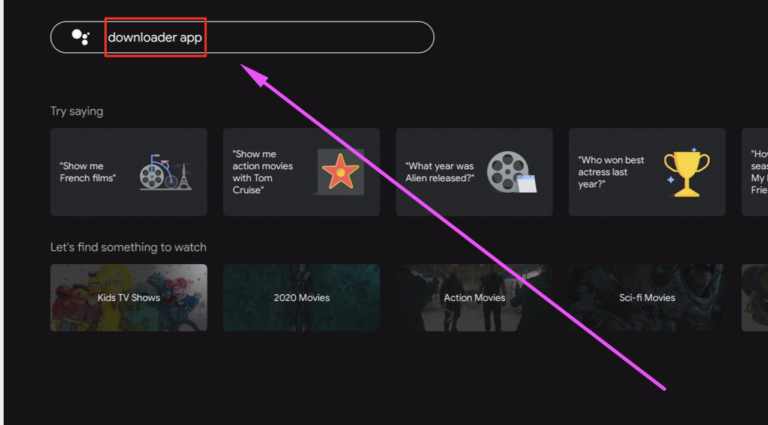
- Make your way to App Categories > Search for Apps.
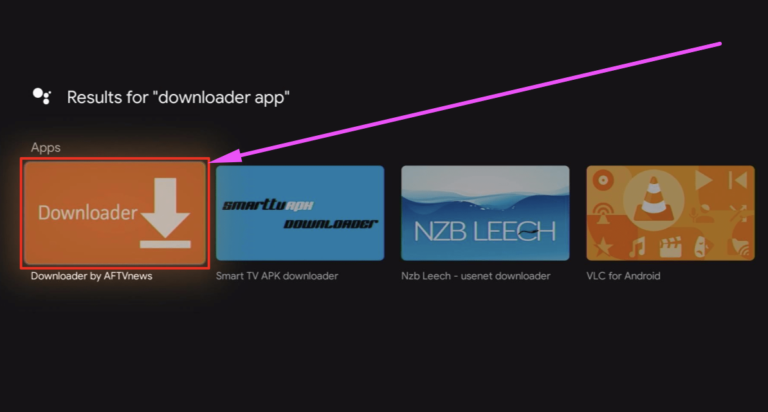
- In the search bar, please enter Downloader.
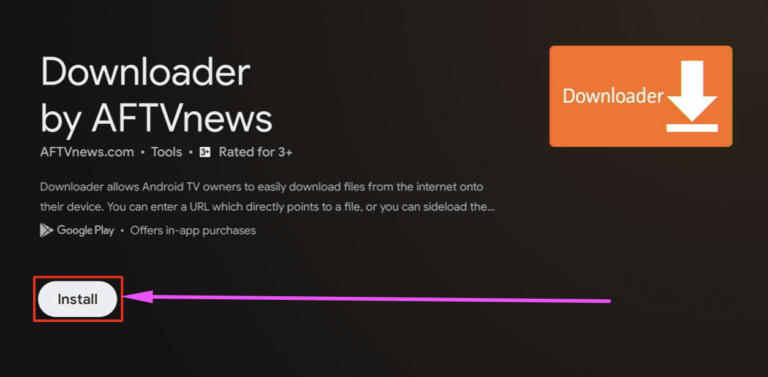
- Install the Downloader App on your Google TV 4K device.
- After the installation is successful, tap on the Open option.
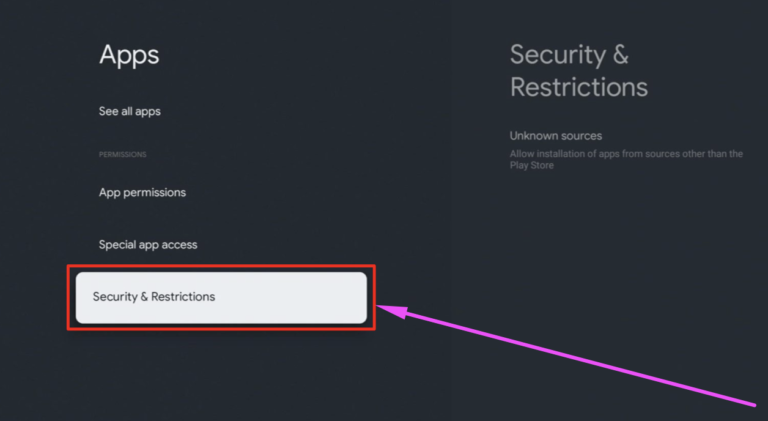
- Next, navigate to Profile Settings > Privacy > Security & Restrictions.
You will see an option for Unknown Sources. - Tap on this option and toggle ON Unknown Sources for the Downloader App.
Install Cinema HD APK on Chromecast with Google TV 4K
- Please launch the Downloader App now from the home screen.
- You will find it under the Your Apps section.
- Tap Allow when prompted.
- You will see a space to enter a URL in the Downloader App.
- Here, enter the URL provided below to download the Cinema HD Latest APK on Chromecast with Google TV, and hit Go.
- Wait for the APK file to download.
- Once the download is complete, follow the on-screen installation instructions that appear to install the Cinema HD App on your Google TV 4K.
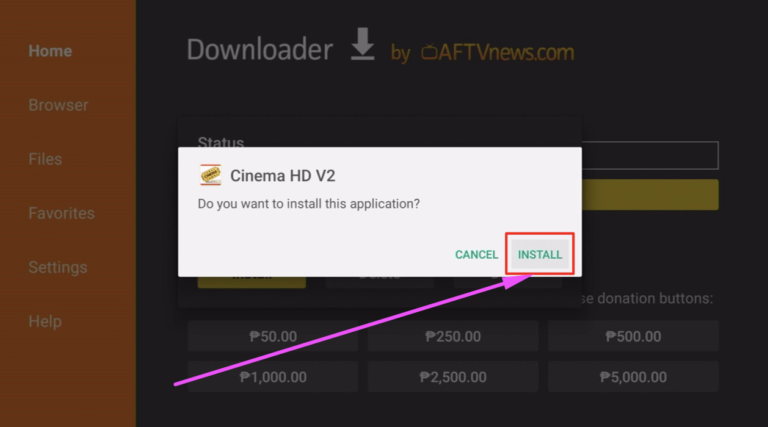
- Follow the simple on-screen instructions to complete the installation of Cinema HD on Chromecast with Google TV.
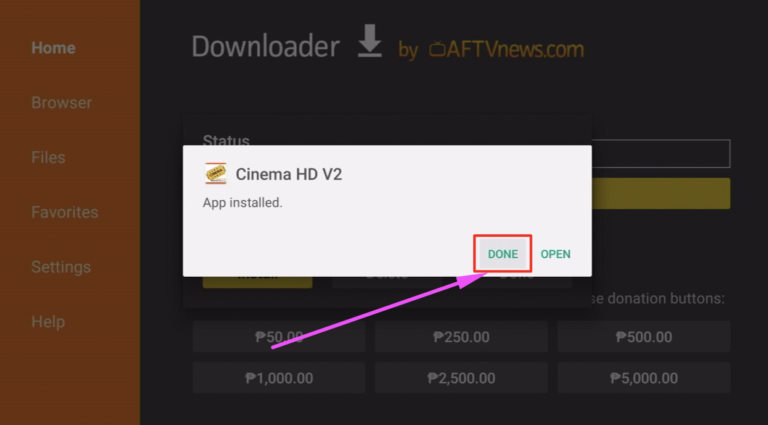
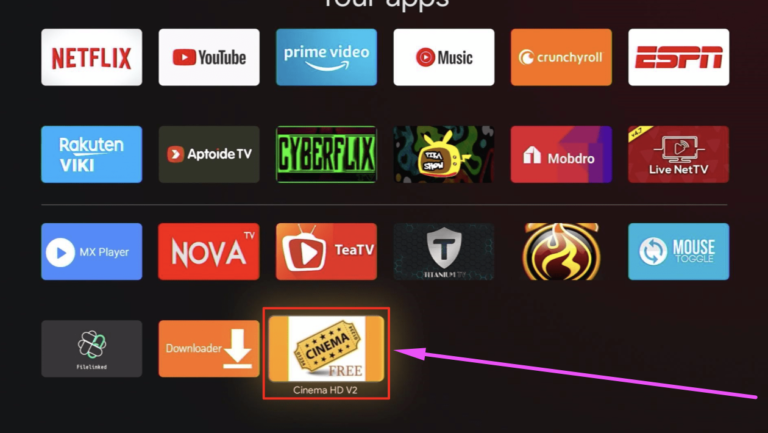
- After the installation is complete, you will see the Cinema HD icon under the Your Apps section on the home screen of your Google TV 4K device.
Cinema HD on Google TV with Chromecast | How to Update?
- Please navigate to Cinema HD in the Your Apps section.
- Tap and hold on the Cinema HD app listing.
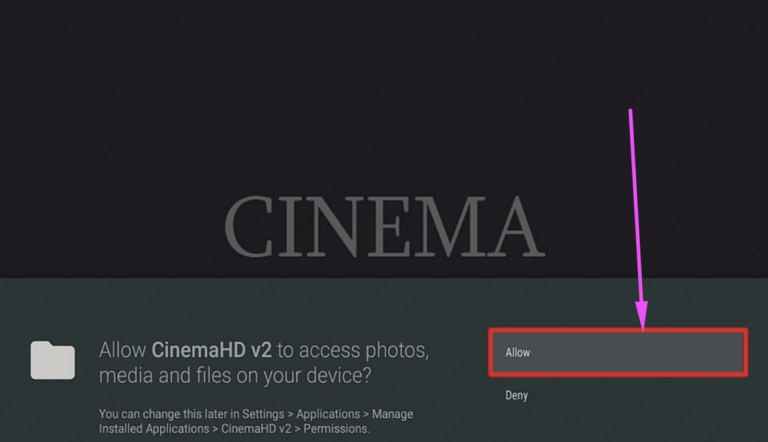
- A pop-up screen will appear with the following options: Move, Open, and View Details.
- Tap on View Details.
- Under View Details, you will see two options: Update and Uninstall.

- Since this is a third-party Android app, you will not receive direct updates. Therefore, to update the Cinema HD App, you need to uninstall the existing version and then follow the re-installation steps to install the latest version again.
Frequently Asked Questions
Cinema HD Latest APK on Chromecast with Google TV 4K
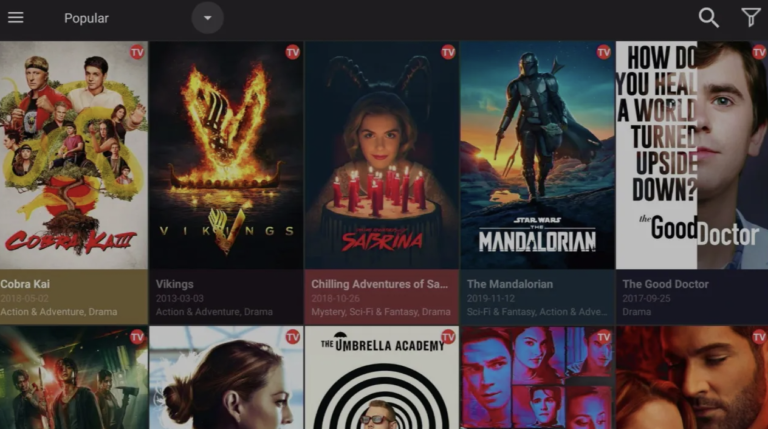
This is how you can utilize the services of Cinema HD on Google TV 4K with Chromecast. Install the app and start streaming your favorite content. If you have any questions or face issues, feel free to drop them in the comments section below — we’re here to help!